How to write and translate guides in Hindi
Practical rules for Hindi and other Indian language guides: keep on-screen labels as shown, use plain Hindi, and how showdo translates into 60 languages.
Pavan Kotapally7 min read
A guide in English helps the people who read English comfortably. A guide in Hindi helps everyone else on the team, and often helps the English readers too, because it is quicker to take in the language you think in.
But a bad Hindi guide is worse than none. If it sounds like a textbook, or it renames the buttons so people cannot find them on screen, they will go back to asking a colleague. This post gives you a short set of rules for writing and translating how-to guides in Hindi. They work for most other Indian languages too. It then explains how showdo does the translation.
Rule 1: keep on-screen labels exactly as the app shows them
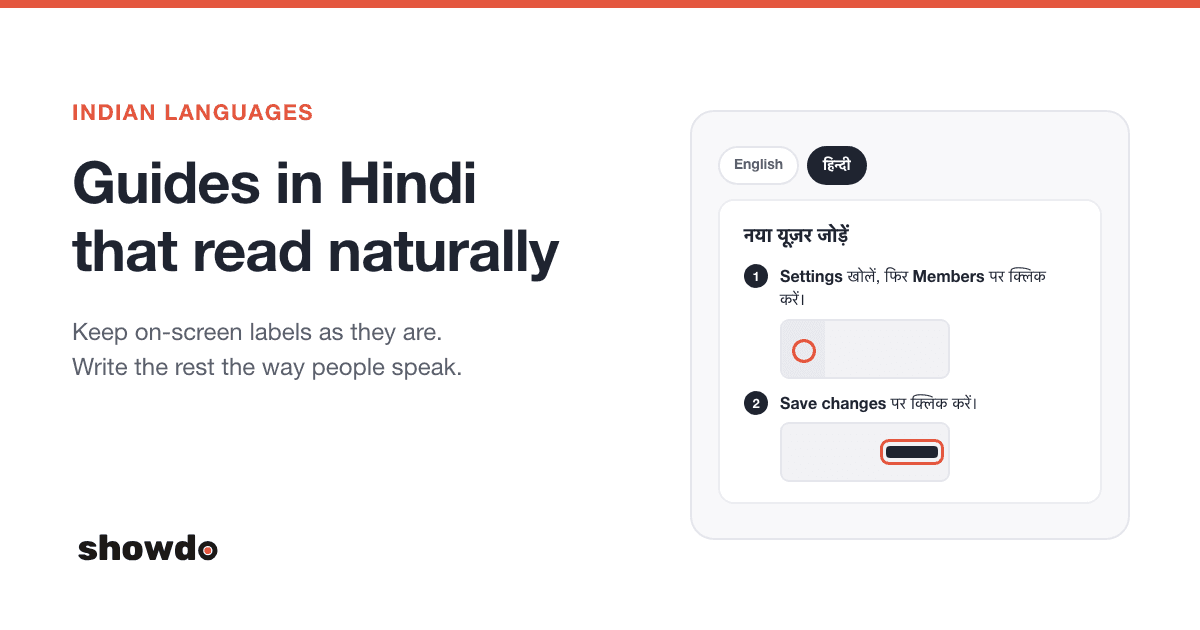
This is the most important rule. When a step says "click Save changes", the person is looking for a button that says Save changes. If your Hindi guide says "बदलाव सहेजें पर क्लिक करें" and the button is in English, they will not find it.
Most business software is shown in English, even to people who read and speak Hindi all day. So:
- Write button, menu, tab and field names in the same language and spelling the app uses, usually English.
- Put them in bold so they stand out from the sentence.
- Translate only the words around the label.
If the app itself is in Hindi, then copy the Hindi label exactly. The rule is the same: match the screen, not the dictionary.
Rule 2: write the rest in plain, modern Hindi
Write the way a helpful colleague would explain it across a desk. Short sentences. One action per sentence. Words people use in daily life.
Avoid the formal, bookish Hindi of government forms. It is correct, but nobody says it out loud, and it slows people down. The goal is that the reader understands each step on the first read.
Rule 3: keep the tech words people actually use
Many English tech words are normal Hindi now. Everybody says them. Writing a Hindi replacement makes the guide harder to read, not easier.
| Write this | Not a stiff word like |
|---|---|
| वेबसाइट | जालस्थल |
| फ़ाइल | संचिका |
| पासवर्ड | कूटशब्द |
| क्लिक करें | चटका लगाएँ |
| PDF, OTP, URL | spelled-out versions |
If you are unsure, ask yourself: would someone in your team say this word out loud? If yes, keep it. Both Devanagari (वेबसाइट) and Latin (website) are fine. Pick one style and keep it the same through the whole guide.
Rule 4: leave numbers, PINs, codes and URLs unchanged
Anything the reader has to type or compare must stay exactly as it is.
- Numbers and dates: 2024-25, 6-digit, 4821 stay as digits (0 to 9).
- Web addresses, file names and keyboard shortcuts such as Ctrl+S.
- Codes, commands and anything in a code block.
- Placeholders like [email]. showdo uses these where it hid private details.
Do not convert digits to Devanagari numerals and do not translate a URL. A reader who copies it needs the original.
Rule 5: one guide per language
Keep the Hindi guide as its own guide. Do not mix Hindi and English paragraphs in one guide, and do not put both languages in the same step.
A separate guide per language is easier for readers (they open the one they want), easier to update (fix a step in one place) and easier to share (send the Hindi link to the Hindi team). It also keeps the screenshots the same across languages, so you can compare them.
A real example, step by step
Here is one step in English, then in Hindi, following all five rules.
English
Click Download statement
Open the website https://bank.example.com/statements. Choose 2024-25 as the year, enter the OTP sent to your phone, then click Download statement. The PDF file is saved in your Downloads folder.
Hindi
Download statement पर क्लिक करें
वेबसाइट https://bank.example.com/statements खोलें। साल 2024-25 चुनें, फ़ोन पर आया OTP डालें, फिर Download statement पर क्लिक करें। PDF फ़ाइल आपके Downloads फ़ोल्डर में सेव हो जाएगी।
What stayed the same: the button label Download statement (bold, exactly as on screen), the URL, 2024-25, and the words PDF, OTP and Downloads. What changed: only the sentence around them, and it is written the way people speak.
Tip: Read your Hindi step out loud. If you would not say it to a colleague, rewrite it in simpler words.
How translation works in showdo
showdo can write or translate a guide into 60 languages, including the 22 scheduled languages of India. The list also has Hinglish (Hindi in Roman letters, the way people text), Indian English and regional languages such as Bhojpuri and Tulu.
One click, and each translation is its own guide
Open a guide and choose Translate. Pick a language, then choose how to save it:
- New copy keeps your guide as it is and makes the translation as a new draft, linked to the original. This is the one to use for one guide per language.
- This guide replaces the words of the guide you are in. You can undo it.
The screenshots stay the same either way. The dialog also lists the versions you already have, so you can open them or see which languages are done.
What gets translated
showdo sends the text: the title, the summary, each step's title, description and notes, and the text callouts drawn on screenshots. It does not send screenshots, and the clicks and recorded data are not changed.
The instructions to the AI follow the same rules as above. It is told to write in the right script, to keep text that names a button, menu, tab or field exactly as it appears on screen (labels in quotes), and to leave placeholders, code, URLs, file names, shortcuts and numbers alone. For Hindi it is asked for plain, modern Hindi as used in workplace software, with common English tech words kept.
It checks its own work
After each batch comes back, showdo checks that:
- the text is really in the chosen script,
- nothing was left blank,
- placeholders like [email] were kept as they were.
A step that fails gets one more try, with the reason. If it still fails, that step stays in its original words and showdo tells you how many steps were left as they were. showdo does not pass off a half translation as finished.
Review it, always
Translation is done by AI, so have someone who speaks the language read it before you share it. For some languages the dialog says plainly that the result is a draft and a native speaker should review it. Use this prompt with any AI tool as a second pair of eyes before the person reviews it:
Review this Hindi how-to guide against these rules and list what to fix. Do not
rewrite the whole thing.

1. Button, menu, tab and field names must match the English app exactly.
2. Everything else should be plain, modern Hindi as people speak it, not formal
   or bookish Hindi.
3. Common tech words (वेबसाइट, क्लिक, PDF, OTP, पासवर्ड, फ़ाइल) should stay as they are.
4. Numbers, PINs, URLs, file names and codes must be unchanged.
5. Each step should be one short action.

Guide:
{{paste the guide text here}}
The video follows the language
Each translated guide can have its own video. The script, captions and voiceover are made in the guide's language. How well a voice speaks a language varies:
- Hindi, Hinglish, Marathi, Tamil, Kannada, Urdu, Nepali and Indian English have voices the speech service supports.
- Bengali, Telugu, Malayalam, Gujarati, Punjabi, Odia, Assamese, Sanskrit and Maithili work, but showdo asks you to listen to each scene before you share.
- Other languages get captions, and you can record your own voice for each scene.
Read more about how the video is made in written guide or video.
Note: Translation, writing the script and recording the voice are AI features. If an admin has turned AI off for the workspace, translating is not available.
A short checklist
- Keep labels as the app shows them, in bold.
- Write the rest in plain, modern Hindi.
- Keep tech words people really use.
- Leave numbers, PINs and URLs alone.
- One guide per language.
- Have a native speaker read it before you share it.
Questions
Which languages can showdo translate into? Guides can be written or translated into 60 languages, including the 22 scheduled languages of India. See the Indian languages page.
Does translating change my original guide? Not if you choose New copy. The original stays as it was. If you choose This guide, the words are replaced, and you can undo it.
Are my screenshots sent to be translated? No. Only the text is sent.
Should I write the guide in Hindi from the start, or translate an English one? Either works. If your team records in English-language software, recording once and translating is the quickest, then review the Hindi. If your team works in Hindi, you can write the guide in Hindi directly.
Is the translation always right? No. It is a good draft, checked for script and placeholders, but it is AI. Have someone who speaks the language read it. For languages marked as a draft in showdo, this matters even more.