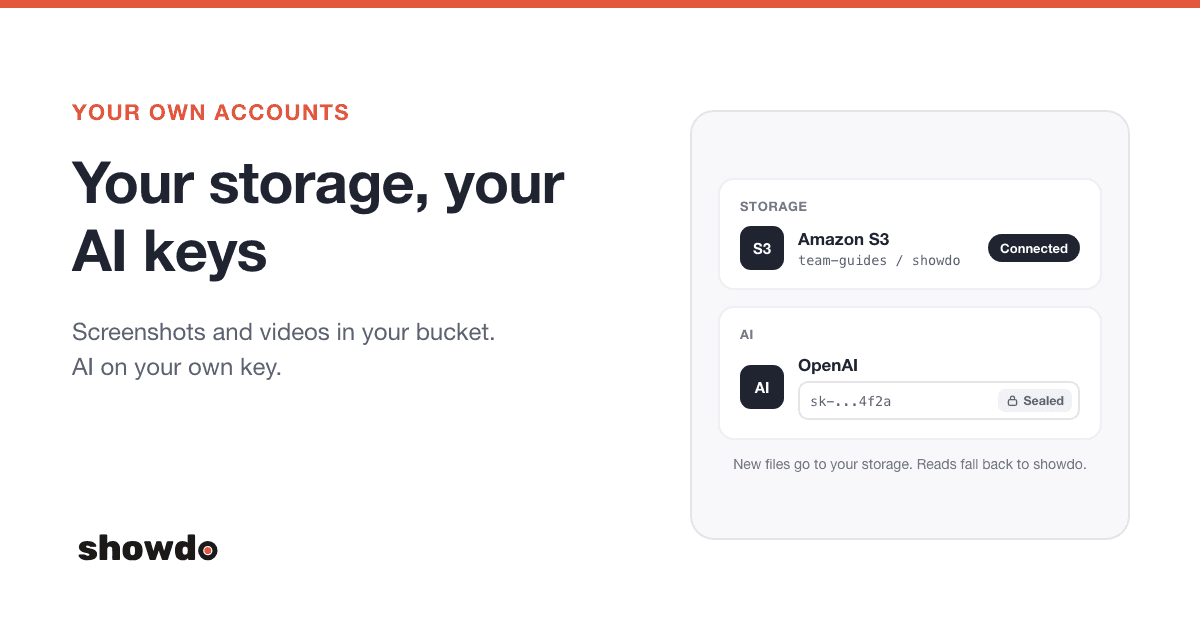
By default showdo looks after two things for you: where your screenshots and videos are kept, and which AI writes your guides. Some teams want those under their own accounts. The files should sit in a cloud account the company already controls, and the AI bill should go to the company's own key.
A workspace owner or admin can do both from Settings, Storage and AI. This post covers what you can connect, what happens to your files once you do, how to switch back, and which voices you get.
What you can connect
There are two separate choices, Storage and AI. Each one has the same two options: showdo handles it (the default, nothing to set up) or Use my own. You can change one and leave the other alone.
| Your options | |
|---|---|
| Storage | Amazon S3, Google Cloud Storage, Microsoft Azure Blob, Cloudflare R2 |
| AI | OpenAI or OpenRouter |
Only owners and admins can see or change these connections. Everyone else in the workspace never sees the screen.
Connect your own storage
Choose Use my own on the Storage card, pick your provider, and showdo walks you through it. Amazon S3 takes about 10 minutes (about 5 if you already have a storage space). Azure takes about 15.
- Create a private storage space in your cloud account. Providers often call it a bucket or a container. showdo asks for one space, and you can add an optional folder inside it. showdo keeps everything inside that folder.
- Give showdo access. Some steps need you to paste access rules into your provider's console. showdo puts them on your clipboard with a Copy access rules button, so you do not have to type them.
- Paste the keys and choose Test and save.
The test is real. showdo saves a tiny file in your storage, reads it back and deletes it. If any of that fails, you get a short message in plain words (wrong name, wrong region, missing permission, wrong key) and nothing is saved.
showdo can only reach the one storage space or folder you give it. You never need to change CORS settings or any other browser setting on your side.
Tip: Give the keys the narrowest access your provider allows: one storage space, nothing account-wide. The setup steps list what showdo can and cannot do before you start.
What goes where
Once you are connected, showdo keeps a workspace's pictures, covers, videos, voiceovers, uploads and logo in your storage. That covers new screenshots and new videos from that moment on. The confirmation says it plainly: new files go to your storage, and files already in showdo stay there until you choose to move them.
Two rules are worth knowing.
- Reads fall back. If a file is not in your storage yet (it was saved before you connected, or has not been moved), showdo reads showdo's copy instead, so nothing looks lost.
- Writes never fall back. If your storage stops working, saving a new file fails with a plain message and the connection shows Needs a look. showdo does not quietly save your files somewhere else.
Move my files
Right after you connect, showdo offers to move the files you already have. Choose Move my files and showdo copies each file to your storage, checks it, and only then removes its own copy. You see a progress count, like "40 of 120". If some files do not move, you get a message and a Try again button.
Choose Not now if you would rather wait. Reads fall back to showdo's copies in the meantime.
Switching back to showdo's storage
Choose Go back to showdo on the Storage card and showdo asks one question: what should happen to the files in your storage?
- Bring my files to showdo. showdo copies every file from your storage and checks each one. Your storage keeps its own copy too. showdo switches over once every file is safe. If any file fails, it does not switch and nothing is deleted.
- Leave them in my storage. showdo's storage is used right away. Guides made while your storage was connected show without their screenshots, videos and downloads. Where a screenshot is missing, the guide shows a small grey picture that says "Stored in your own storage, which is no longer connected".
The leave-behind choice is not permanent. Connect the same storage again and those files show up again.
Note: "Bring my files" is the recommended choice, and it is the one to pick if you are closing the cloud account.
Connect your own AI key
Choose Use my own on the AI card and pick OpenAI or OpenRouter. It takes about 3 minutes.
- Create a new key in your provider's dashboard. Naming it "showdo" makes it easy to turn off later.
- Set a spending limit on the key, so showdo can never spend more than you decide.
- Paste the key into the form.
You can pick a model, or leave it on showdo's pick. There is also a setting called If my key stops working. Choose Keep going with showdo's AI or Stop AI and tell me.
showdo uses your key to write guide text and answer questions. Once the key is saved it is sealed. It is never shown again, only a short hint such as "...4f2a". showdo cannot see your other keys, your files or your billing details.
Voices run on your key too
Narrated videos use the same key as everything else.
- OpenAI key. Voiceovers are spoken by OpenAI directly, using showdo's list of AI voices.
- OpenRouter key. Voiceovers go through OpenRouter's speech service. showdo maps each voice name onto the voices OpenRouter's speech model has, so a name can sound a little different from the same name on OpenAI.
- No key of your own. showdo's key does the speaking.
- Key broken and set to stop AI. Nothing speaks until you fix the key.
Recording a workspace voice uses OpenRouter. If your workspace has its own OpenRouter key, that key is used. Otherwise showdo's OpenRouter key is.
Setting it up when you create a workspace
You do not have to wait until later. When you create a team or company workspace, there is an optional step called "Where should your files and AI live?" It shows the same two choices and the same guided sheet. Owners and admins see it, personal workspaces do not, and you can choose Skip for now and come back to Settings, Storage and AI whenever you like.
A brand new workspace has no files yet, so there is nothing to move at that point.
Questions
Can I connect storage but keep showdo's AI?
Yes. Storage and AI are separate. Connect one, both or neither.
Does anyone in my workspace see my keys?
No. Only owners and admins can open the screen, and even they only see a hint of the key after it is saved. The full key is never shown again.
What happens to files I already have when I connect storage?
They stay in showdo's storage until you choose Move my files. Reads fall back to showdo's copy, so guides keep working in the meantime.
What if I leave my files in my own storage and then reconnect?
Connect the same storage again and the screenshots, videos and downloads come back.
Can I use any other AI provider?
Today, OpenAI and OpenRouter are the two you can choose for a new connection. OpenRouter gives you many models behind one key.
Want to see where this fits in a larger setup? The for enterprise page lists roles, workspace rules and these connections together, and the docs cover the basics of recording and sharing.