Most how-to guides fail in the same way. The writer knows the task so well that they skip the parts a newcomer gets stuck on. The reader gets to step 4, cannot find the button, and asks a colleague instead.
This post is a checklist for writing guides people actually finish. It works for any tool, in a wiki, a document or a help page. Where showdo makes one of these points easier, there is a short note on how. If you never use showdo, you can ignore those notes and the advice still stands.
1. Start with the outcome
The first line should say what the reader will have when they are done. Not "Overview" and not a paragraph of background.
Compare these titles:
- Weak: "User management"
- Better: "Add a new member to your workspace"
The second one tells the reader whether they are in the right place before they read anything else. Search results and chatbots also match a title like that to the question a person types.
2. Say who it is for and what they need first
Under the title, write two short lines:
- For: who should follow this ("workspace admins").
- You need: what must be true before step 1 ("admin access and the new person's email address").
Nothing wastes more time than a guide that fails at step 6 because it needed a permission nobody mentioned.
3. One action per step
A step is one thing the reader does. If you wrote "and" or "then" in the middle of a step, it is probably two steps.
Here is a bad step and a good version:
Bad
3. Go to settings and set up your profile how you like it, check the
   notification options and save.

Good
3. Click **Settings** in the left menu.
4. Click **Profile**.
5. Type your name in **Display name**.
6. Click **Save changes**.
The bad version hides four actions, two decisions and a missing detail (which notification options?). The good version has no decisions in it. If the reader has a real choice to make, say what to pick and why, in a tip.
Tip: A step should fit on one line before you add detail. If you need a whole paragraph, split the step.
4. Name buttons exactly as they appear on screen
Write the label the reader will see, in bold: Save changes, not "the save button". If the screen says Submit, do not write "Send". If the button is an icon, say what it looks like and where it is: "the three dots at the top right".
Check your wording against the screen when you finish. Product teams rename buttons all the time, and a guide that says "Click Continue" next to a button that says "Next" makes readers doubt the rest.
How showdo helps: when you record on a Mac, showdo reads which button, menu or field you clicked, so steps get the right names. AI wrote that text from your clicks, so still read each step against its screenshot, as showdo's own docs tell you to.
5. Put tips and warnings at the step they apply to
A warning at the top of the guide is forgotten by step 5. A warning that sits right above the step it affects gets read.
Use three kinds of note and keep them short:
- Tip: a faster way, or a choice with a recommended answer.
- Warning: something that can lose data or cannot be undone. Put it before the step, not after.
- Note: what to expect, such as "this can take a minute".
Section headings help in long guides. Group steps into "Before you start", "Set it up" and "Check it worked".
How showdo helps: you can add a note between any two steps, and notes come as tip, warning, note or section heading. Open the menu on a step and choose Add note below.
6. Add a screenshot for each step, with the click marked
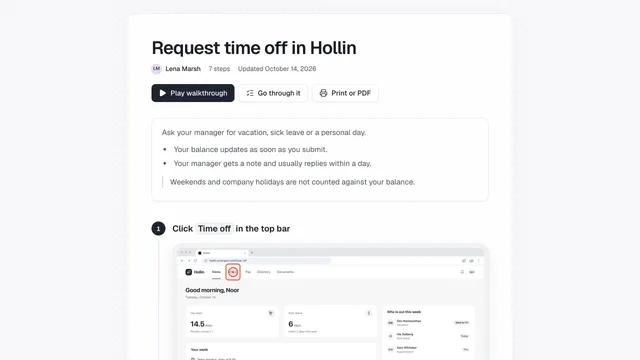
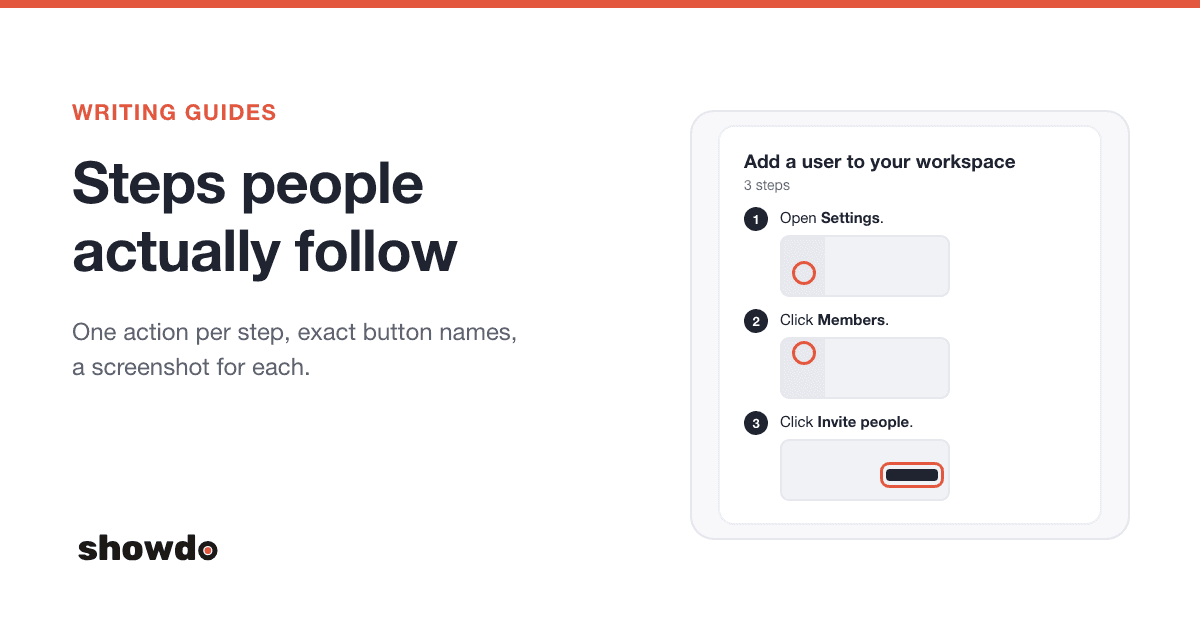
A screenshot answers "am I on the right screen?" faster than any sentence. The picture should show the whole screen the reader will see, with the button or field to use clearly marked. A red circle or a box is enough.
Two rules for screenshots:
- One per step, taken at the moment of the action.
- Hide anything private: names, emails, account numbers, card numbers.
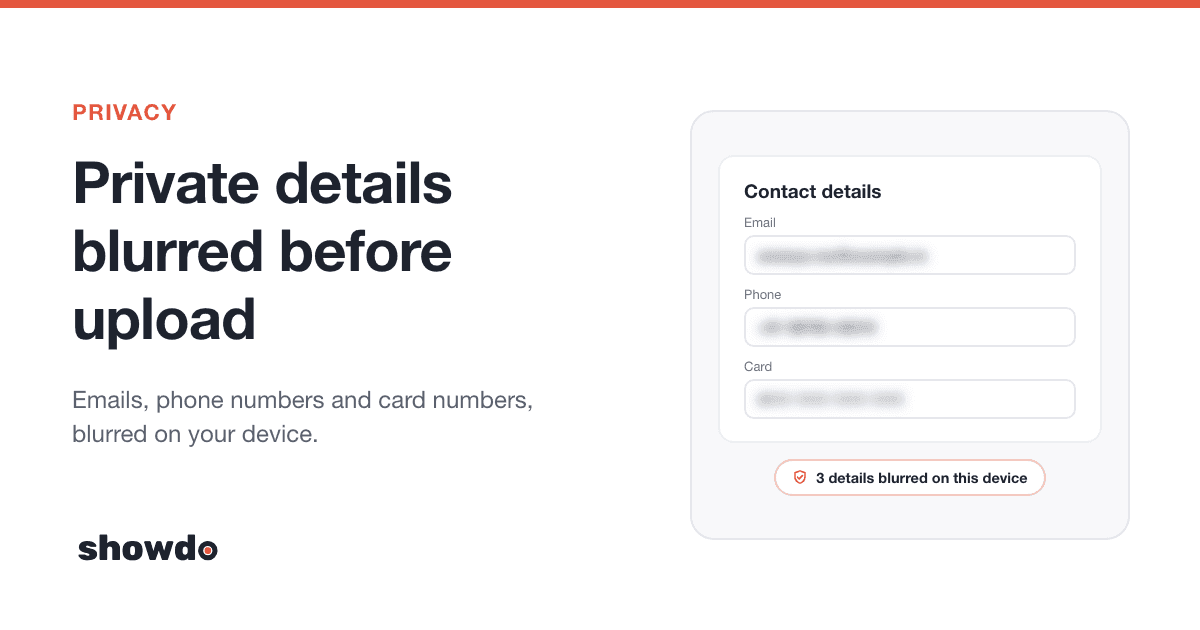
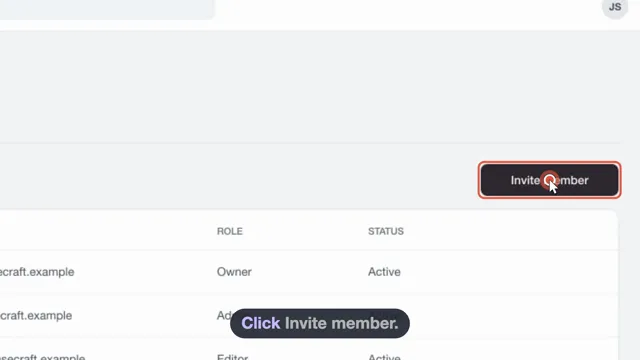
How showdo helps: every click you record becomes a step with its own screenshot and the spot you clicked marked on it. Typing in a field is one step, not one per key. Emails, phone numbers and card numbers are blurred on your device before anything is uploaded, and password fields are never captured. You can also draw arrows and boxes on a screenshot or crop it, and every image edit can be undone. See the editor for the details.
7. Cut what the reader does not need
After the first draft, read it once and delete:
- Steps that only describe a screen ("You will see the dashboard").
- Background the reader did not ask for.
- Optional paths. Give each one its own guide and link to it.
- Repeated steps, like signing in. Link to the sign-in guide instead.
A shorter guide has fewer places to go wrong, and it is easier to keep current.
How showdo helps: the AI cleanup drops rage clicks, misclicks and undone steps while it drafts, and flags steps that look accidental so you decide. You can also hide a step or delete it, and a dropped step can be restored.
8. Test it on someone new
You cannot proofread your own guide, because your brain fills in the gaps. Give it to someone who has never done the task. Sit next to them, say nothing, and watch where they stop. Each pause is a missing detail.
Fix those, then try it on one more person. Two newcomers find most of the gaps.
How showdo helps: open a guide and choose Go through it, then Here in showdo. It shows one step and its screenshot at a time, with next and back, which is how most readers will use it. See walkthroughs.
9. Keep it current
A guide that is wrong once teaches people not to trust any guide. Pick a habit:
- Put a date or version on the guide.
- Review the ones people use most every quarter.
- When a screen changes, fix the guide that day.
- When someone asks a question the guide should have answered, treat it as a bug in the guide.
How showdo helps: when a screen changes, record the task again and replace the old guide, or edit just the steps that changed. You can reorder, rewrite or duplicate a step, and add a screenshot to a step that has none. Collections show how long ago each guide was updated.
A prompt to review your draft
Paste your finished guide into an AI tool with this prompt. In showdo you can export a guide as Markdown first. Ask the AI to find problems, not to rewrite it, so the guide stays in your voice.
You are an editor reviewing a step-by-step how-to guide. Do not rewrite it.
List problems only, as a numbered list, each with the step number and a one
line fix. Check these things:

1. Does the title say the outcome ("Add a user"), not just a topic?
2. Is there a line saying who the guide is for and what the reader needs first?
3. Does any step contain more than one action? Quote it and suggest a split.
4. Does any step use a vague word for a button ("the button", "settings")
   instead of the exact label? (I will check the labels against the screen.)
5. Is any step missing a detail a first-time reader would need, such as where
   to find something or which option to pick?
6. Is any warning placed after the step it applies to instead of before it?
7. Which steps could be cut because the reader does not need them?
8. Is there a step the reader cannot check ("Did it work?") at the end?

End with the three problems most likely to make a new reader give up.

GUIDE:
<paste the guide here>A template to copy
Title: <What the reader will have at the end>

For: <who>
You need: <access, tools, information>

1. <One action>. Click **<Exact label>**.
2. <One action>.

> **Warning:** <What can go wrong>, before the step that causes it.

3. <One action>.

Check it worked: <what the reader should see>
Questions
How long should a guide be? As long as the task needs and no longer. If a guide passes 15 or 20 steps, look for a natural break and split it into two guides.
Do I need a screenshot on every step? For software tasks, yes. A step with no picture makes the reader hunt. A step like "Wait a minute for the email" can go without one.
Can I do all this in another language? Yes. The advice does not change. In showdo, guides can be written or translated into 60 languages, including the 22 scheduled languages of India, and the translation is a separate copy so the original stays as it was.
Where can I learn more about recording guides? Start with the showdo docs or the page on recording a task.