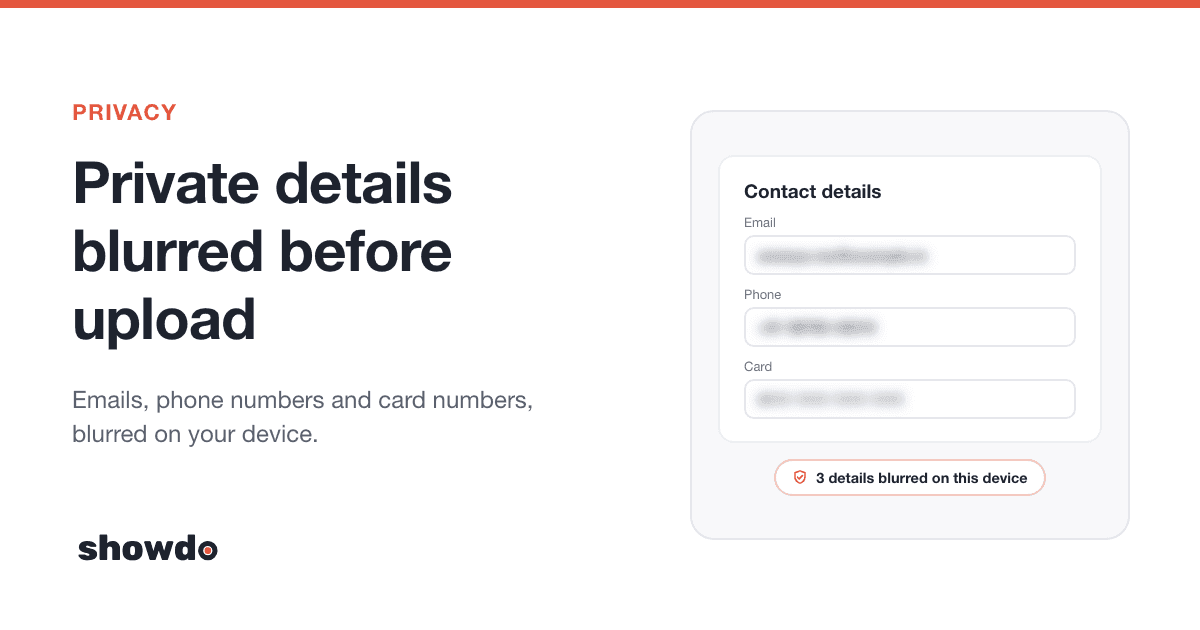
A screenshot shows everything on the screen, not just the button you meant to point at. An email in the corner, a phone number in a table, a card number in a form: they all go into the picture. If that picture ends up in a guide you share, they go with it.
This post explains how showdo handles that. It covers what gets blurred automatically and where that happens, what you should still look at before you share, and what people see for each sharing setting. It is useful even if you only want to know what to look for when you write step-by-step guides with screenshots.
What showdo blurs for you
First, on your device
When you record with showdo for Mac or showdo for Chrome, personal details are blurred in the screenshot before it is uploaded. The unblurred original is never sent to showdo's servers.
The detectors look for:
- email addresses
- phone numbers
- card numbers
- ID and bank numbers (such as IBANs and US social security style numbers)
- access keys and secret keys
- IP addresses
- street addresses
The two apps find these in slightly different ways.
- showdo for Mac reads the text in the screenshot with Apple's text recognition, which runs on your Mac. It matches that text against the detectors and blurs those spots.
- showdo for Chrome looks at the text on the page you are recording, works out where each match sits on screen, and blurs those spots in the screenshot.
In both cases the blur is real pixel work: the area is turned into blocks and then smoothed. If the Chrome extension cannot blur a screenshot for any reason, it drops the picture. The step still uploads, just without a screenshot, so an unblurred image is never sent.
Passwords and sensitive fields
Password fields are always blurred, even if auto-blur is turned off. Chrome also boxes card number and one-time-code fields once they have something typed in them.
Typed text and step text
The words in a step get the same treatment. A typed email address becomes [email] in the step text, and other matches become [phone], [card] and so on. A workspace owner or admin can go further: they can require blurring on every capture, and they can switch typed-text capture off so typed words are replaced with a placeholder.
Then, a second check after upload
When a recording finishes and the guide is written, showdo looks again. It reads the text in each screenshot, checks it against the same patterns, and replaces any private text it finds in the step titles, descriptions and summary with placeholders.
If the workspace allows AI features, an AI review also looks for things patterns cannot recognize, like names, addresses and ID numbers. The blur is placed on the exact words the text reader found. showdo does not guess a box, so something it cannot place is reported but not blurred. If AI features are off for the workspace, the AI review does not run.
What to check before you share
Automatic blur is good, but it is not perfect. Patterns catch things that look like emails and phone numbers. They do not know that a customer's company name is private, or that an order number is sensitive for your team. Take two minutes before you share.
- Open Privacy on the guide. It lists every blurred area, step by step. Choose Scan guide to run another check. It shows what it found, and Blur and remove all applies the findings.
- Look at every screenshot. You are looking for what text detectors cannot read: faces and profile photos, logos, charts with real numbers, drawings, and text inside images.
- Look for names and internal details. Customer names, project names, ticket numbers and internal addresses are easy to miss because they look like ordinary words.
- Read the step text. Titles, descriptions and typed text are shown to everyone who can open the guide. A card number with a typo can fail the card check, so it may slip through. Read the words, not only the pictures.
- Check any "go to" steps. A step that opens a page shows its address as a link to anyone viewing. If that address carries an id or a token, edit it out.
- Add blur by hand where you need it. Open the screenshot in the image editor and use the blur tool.
Tip: Do this check once on the finished guide, not while recording. The Privacy list makes it quick, because you only need to look for what showdo did not find.
Who can see a guide
Open Share on a guide and choose who can view it.
| Setting | Who can open it | Search engines |
|---|---|---|
| Workspace only | Members of your workspace | Not listed |
| Anyone with the link | Anyone who has the link | Hidden from them |
| Public | Anyone | May index it |
A few details matter here.
- Drafts stay private. Only members can open a guide that is not published, whatever its sharing setting.
- Workspace only means sign in. A visitor who is not signed in is asked to sign in. Someone who is signed in but not a member of the workspace cannot open it.
- Admins can switch sharing off. A workspace owner or admin can turn off link sharing, public links, or both. A guide set to a choice the admin has since turned off is treated as the next safer setting, and the Share window says why.
- Link and public are for anyone. Someone with a link can pass it on. Choose Public only for guides you are happy to have on the open web.
What an anonymous viewer sees
Someone outside your workspace who opens a link or public guide sees the finished guide: the title and summary, the author's name and photo, the steps with their words, the screenshots (already blurred), any typed text and keys pressed. They can play the walkthrough and print the guide or save it as a PDF.
They do not get the rest of what showdo recorded about each step. That stays on the server:
- the transcript of your narration
- window and page titles
- details about the thing that was clicked
- steps you hid
- the list of blurred areas and the kinds of private data found
Page addresses are cut down to the site's own address, without the rest of the path, except on "go to" steps, which show their link. Members of the workspace see the full guide, with an Open in workspace link.
Note: The unblurred original of a screenshot stays on the device that recorded it. Only the blurred picture is uploaded, so only the blurred picture can be shown to viewers.
Questions
Does showdo blur before the screenshot leaves my computer?
Yes. In showdo for Mac and showdo for Chrome the blur is applied on your device, and only the blurred picture is uploaded.
Will it catch everything?
No. It catches the patterns above and, if your workspace allows AI features, names and addresses on a second pass. It cannot know what is private only to your team, so look through the guide before you share it.
Are passwords captured?
No. Password fields are always blurred, and showdo does not read them while you record.
Can people who have the link see my narration?
No. The narration transcript is not sent to anyone outside the workspace. Viewers get the steps, the blurred screenshots and the words in them.
Where do I turn auto-blur on for everyone?
A workspace owner or admin can require blurring on every capture, and can also turn off typed-text capture. Both are workspace rules. See the docs for the full sharing steps, or the privacy and share and embed pages for an overview.