Shadowing is how most teams onboard. The new hire sits next to someone for a week and watches. It feels friendly, but it has costs. The person being shadowed stops working. The new hire cannot rewind. And the next hire gets a slightly different version of the same explanation.
A better default is this: record the common tasks once, put them in one place, and let the new hire follow them at their own pace. People still matter (more on that at the end), but they spend their time on judgment, not on "click here, then here".
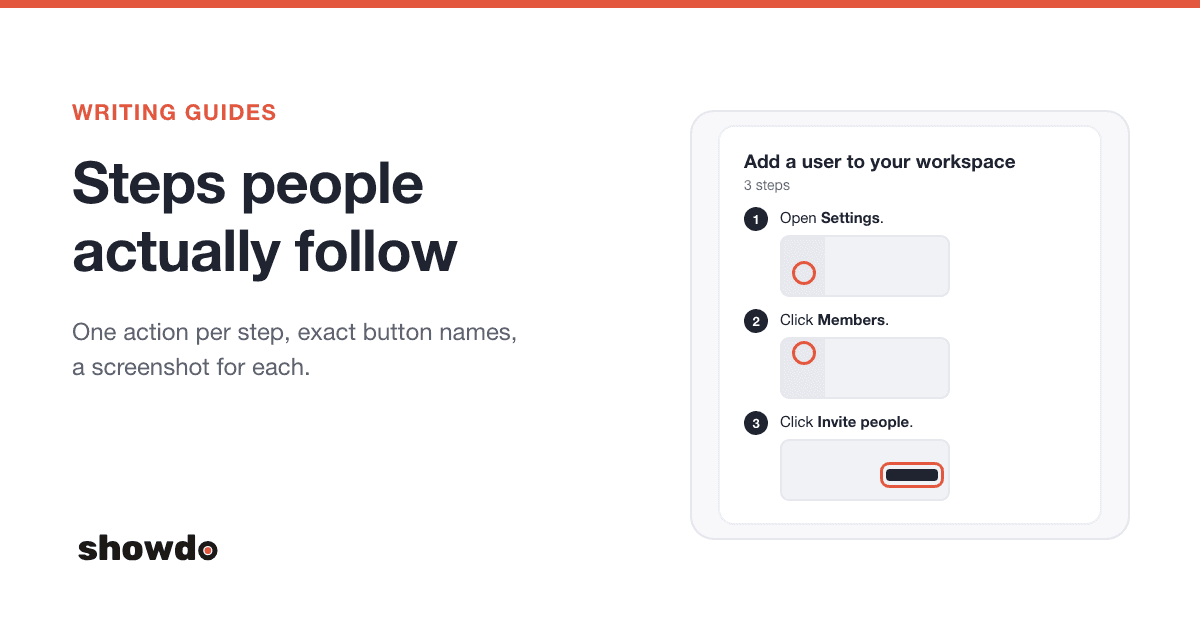
This post is a practical plan. The first half works with any tool. Where showdo has a feature that fits, it is named. showdo records a task as a step-by-step guide with a screenshot for each click.
Week one: record these 10 tasks
Start with the tasks every new hire does in the first two weeks. You are not writing a handbook. You are recording things you would otherwise explain out loud.
- Set up your accounts. Email, chat, calendar and the password manager.
- Request access. How to ask for the tools and folders your team uses, and who approves.
- Set up your laptop. Software to install, settings to change.
- Join the right channels and meetings. Which chat channels, which recurring invites.
- Submit an expense. From receipt to submitted claim.
- Request time off. And where to see your balance.
- Raise an IT or support ticket. Because the first thing a new hire needs is help.
- Log your time or update your status, whichever your team does weekly.
- Do your first real ticket or task. The simplest real piece of work, start to finish.
- Find things. Where documents live, and how to search them.
Pick the 10 that fit your team. If your first week involves a task not on this list, add it and drop one.
How to record them quickly
- Record while you do the task for real. Use a test account or a throwaway item if the task creates something.
- Talk through what you are doing. In showdo, narration helps the AI write clearer steps, and the audio is turned into text on your Mac and never uploaded.
- Do the task at a normal pace, then finish. In showdo each click becomes a step with a screenshot, and typing in a field becomes one step.
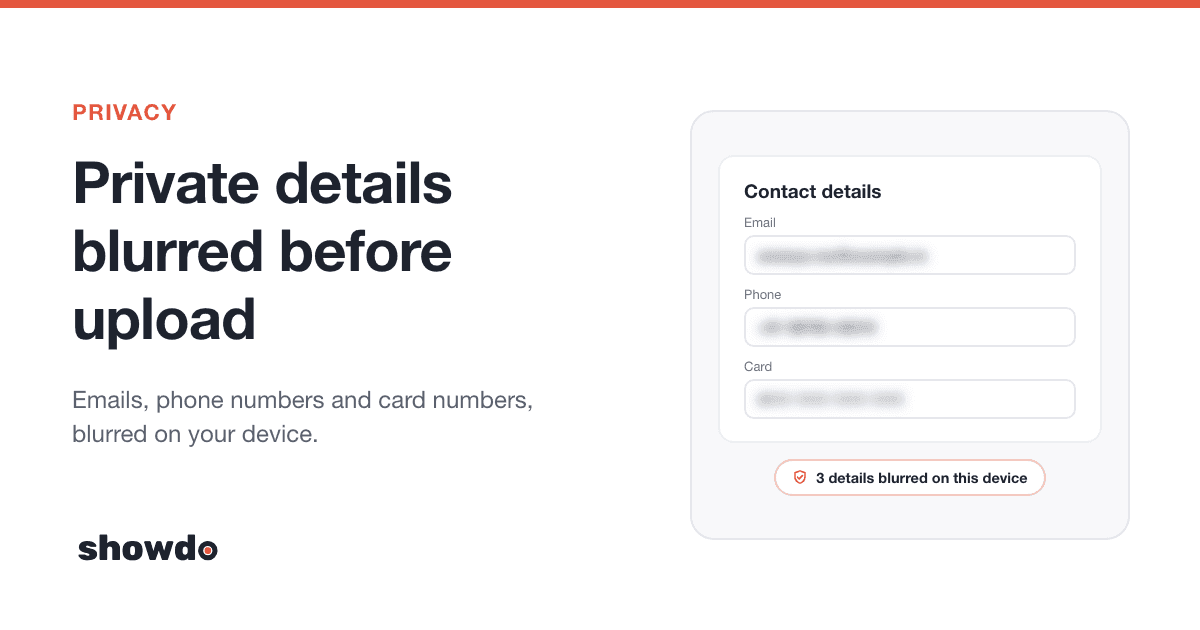
- Read the draft once. AI can get a step wrong. Check button names against the screenshots, and look at the Privacy view, which lists every blurred item, before you share.
- Add a tip or warning where people get stuck. You know where. A note between steps can be a tip, a note, a warning or a section heading.
Ten guides of five to fifteen steps is a few hours of work. If you want to write them by hand instead, the same plan works. For the writing itself, see how to write a step-by-step guide people follow.
Organise: one place the new hire starts
A pile of ten guides is better than nothing, but a new hire needs an order and a front door. Do three things.
1. Put them in a collection
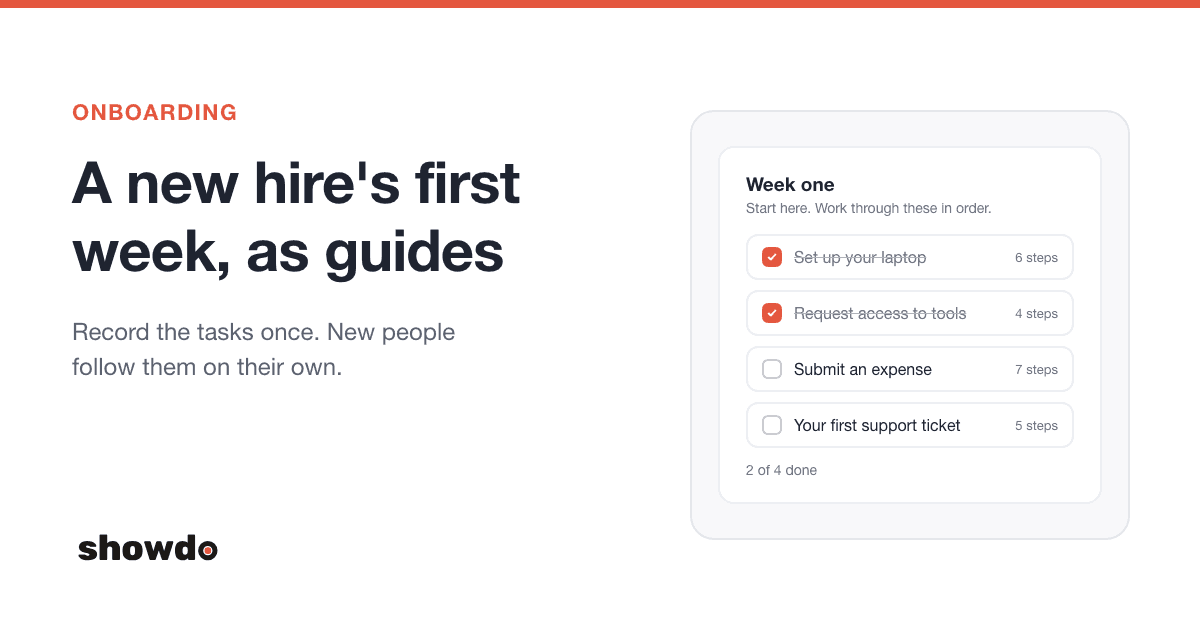
In showdo, a collection combines several guides, with intro text, into one document. Docs describe it as the right shape for an onboarding checklist. To set one up:
- Create a collection and name it "Your first week".
- In the intro, write who it is for and what they will be able to do by Friday. The intro field takes Markdown.
- Choose Add guides and add your ten guides in the order a new hire should do them. Guides show as numbered chapters, and you can drag them or use Move up and Move down.
The collection also shows its number of guides and steps, so the new hire can see how big the job is.
2. Use folders and tags for everything else
The collection is the path. The rest of your library is the reference shelf. showdo lets you keep guides in folders (and subfolders) and add tags, for example one folder per team and a tag per tool. Search covers titles, steps and notes, so a new hire who types "expense" finds the right guide even if they do not know its name.
3. Publish, then give the right role
Two details that catch people out:
- Viewers only see published guides. A guide that is still a draft is visible to editors and above, so choose Publish on each guide you want the new hire to see.
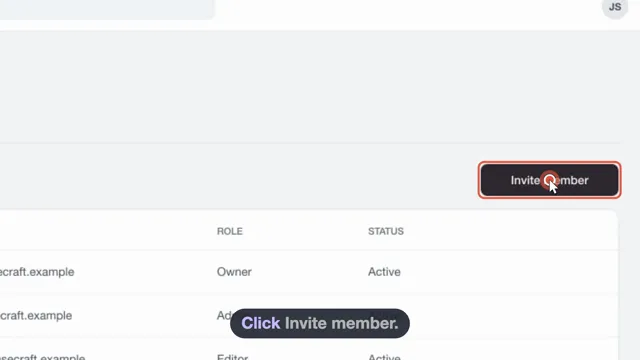
- Give new hires the Viewer role if they should read but not edit. Viewers read guides and collections. Editors can create, edit and publish, so give that role to the people who keep the guides current. Invite people from Settings, Members.
How a new hire uses them
On day one, send them one link: the collection. Then tell them the order is the order. Here is how they work through it.
- Follow one step at a time. Open a guide and choose Go through it, then Here in showdo. They see one step and its screenshot at a time, with next and back.
- Follow on the real page. For guides with web steps, the Chrome extension's On the real page option starts a follow-along tour that points at things on the page. It never clicks for them, so they still do the task themselves.
- Ask a question. The showdo assistant answers from your workspace's guides only, shows the steps, and links to the guide it used. If no guide covers the question, it says so instead of guessing. If a new hire hits that answer, you have found the next guide to record.
- Read in their own language. In showdo, a guide can be translated into another language, including the 22 scheduled languages of India. Translating makes a copy, and the original stays as it was.
A good first-week rhythm is two guides a day, with a short check-in at the end of each day. The new hire does the task for real, so the guide is the practice, not a replacement for it.
Tip: Ask each new hire to note any step that was wrong or unclear. Fix it that day. They are your best testers, because they are the only people who have never done these tasks before.
Keep them current
Out-of-date onboarding guides are worse than none, because a new hire trusts them. Make the upkeep small and routine.
- Give each guide an owner. One name, not "the team".
- Fix on the spot. When a new hire says a screen changed, the owner fixes the guide that week. For a small change, edit the step. For a big one, record the task again.
- Review quarterly. Read through the collection once every three months. The collection page shows how long ago each guide was updated, so the stale ones stand out.
- Add a line to your change checklist. When someone changes a process or a tool, one of the questions is "Which guide does this break?"
- Watch what people ask. A question that keeps coming up is a guide you have not recorded yet.
What still needs a person
Guides are good at "how do I do this task". They are not good at everything. Keep people in the loop for:
- Why we do it this way. Context, history and judgment do not fit in a click-by-click guide.
- Meeting the team. A new hire needs relationships more than documents.
- Feedback on real work. A guide cannot tell them whether their first ticket was any good.
- Culture and expectations. What good work looks like here, how decisions are made, when to ask for help.
- Exceptions. The one time the process does not fit. A guide covers the usual case.
- Anything sensitive. Do not record steps that show secrets. showdo blurs many private details and never captures password fields, but a better rule is to leave credentials out of guides and share them the way your security policy says.
A buddy still helps. The difference is that the buddy answers harder questions, because the easy ones already have a guide.
Questions
How long does it take to record ten guides? Plan an afternoon or two for the first set. Recording is quick. Most of the time goes into reading each draft and adding tips where new hires get stuck.
Should I wait until the guides are perfect? No. Publish a rough guide that works, then improve it as people use it. A guide with a small flaw still beats a coworker's memory.
What about tasks that only one person does? Record them first. These are the ones that cause trouble when that person is on leave.
Can the new hire edit the guides? Only if you give them the Editor role. Most teams start new hires as Viewers and move them up once they know the process.
Where can I read about collections and folders? The library feature page, the onboarding and training page and the showdo docs cover them.